-
Created by
 Stryker Ai, last updated yesterday at 06:59 pm
20 minute read
Client-Side Addendum (Worldgroup v2)
Applies to: v10
Not in v10. This whole chapter describes removed functionality. Client/Server mode, Worldgroup Manager (WGM), the Visual Basic client apps, the Netscape plug-in and the multimedia client are not in v10 (
MBBS10.txtsection 2). The chapter is kept as WG1-3.x history only. Nothing in it can be used to write a v10 module.
Applies to: WG1-3.x (client side: C/S, WGM)
Editor’s note: this material comes from the client-side half of the Developer’s Addendum for Worldgroup v2. There is no WG1 client chapter to merge it into (the Client App Developer’s Guide is not part of this draft), so it is collected here. Per project convention client (C/S, WGM) content is tagged WG1-3.x rather than WG2+. The material itself first appears in Worldgroup 2.0 (it is not in the WG1 manuals); the tag records platform scope, not introduction version. Page references in the text are to the original manuals.
Web-aware Client Apps
A client app written for the Major BBS platform can act as a plug-in Web application as well as an online service application — even running off of the same Major BBS server — without the app developer having to lift a finger. The Major BBS platform does the work required to handle the different venues in which an app may be run.
The Major BBS platform handles the connection between the client and the server. As a result, app developers do not need to worry about whether their app is communicating with the server through a phone line, ISDN link, Novell LAN, X.25 network, or TCP/IP (Internet or Intranet) connection.
This was the case with the Major BBS’s v1.x development platform and is described in the Client App Developer’s Guide. In Worldgroup v2.0, TCP/IP connectivity is the connectivity of choice for plug-in Web apps.
The Major BBS plug-in for Netscape recognizes EMBED tags in HTML files that call out the Major BBS apps. It launches Worldgroup Manager, indicating the domain name of the server to contact, optionally what app to run, and optionally what command string to pass to that app.
Worldgroup Manager allows the user to sign up or otherwise identify himself, then quickly ushers him to either Main System Menu or the specified app (auto-updating as needed).
If the EMBED tag specifies an app, the Main System Menu app may not be run. CNF options JFLAG... in Configuration Options under file tag bbsserver.msg control this. As installed, Main System Menu does not run.
When Worldgroup Manager is used in conjunction with Netscape in this way, four sets of programs interact:
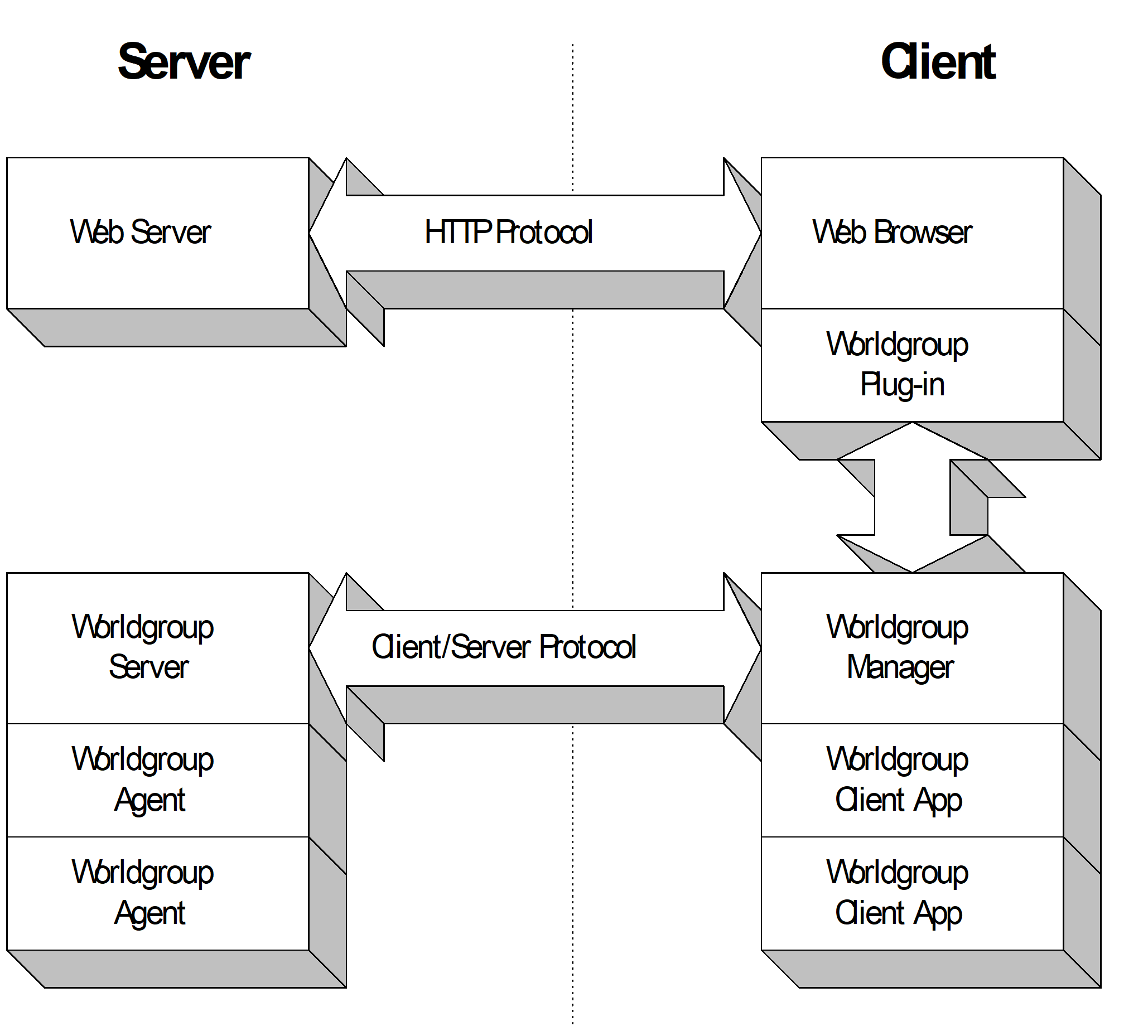
Applies to: v10
Not in v10. Historical figure: the Client/Server protocol architecture it shows (Worldgroup Manager, plug-in, agents, client apps) does not exist in v10.
If you haven’t used the Major BBS on the Web, check out our Web site at http://www.gcomm.com.
Any Major BBS app can be launched as a plug-in Web app if configured to do so on the server. There are some things app developers can do to better interact with the Web browser in these contexts, as explained in the following sections.
Command Strings
Command strings are nothing new. They’re discussed at length in the Client App Developer’s Guide. Basically, they provide a method for the Sysop to specify not only an app to be launched and when, but also what the app should do right away (like pop up a particular window). Command strings become very important when a Webmaster is integrating the Major BBS apps into his Web site. The more control he can have over what happens when an app is launched, the better.
The Webmaster can launch into the standard Teleconference, Polls & Questionnaires, or Message Center apps from his Web site. Given a few of the command strings these apps support, he can have much more control: jump straight into a particular Teleconference channel, go straight in to take a poll, view the messages in a specific forum, etc.
When developing an app, be sure to think about supporting command strings that would be helpful to Webmasters.
Finding and Launching URLs
Applies to: WG1-3.x (Client)
Editor's note: the Year 2000 changes to client date entry and output (replace masked edit boxes with text boxes, use
Format$()andDateValue()) are client-side material that first appears in the WG 3.12 addendum; see chapter 24, "Client Application Date Entry", "Date Output" and "Date Input", where they are tagged WG1-3.x (Client).
The interaction between the Web browser and a Major BBS app doesn’t have to stop when the browser launches the app. The app can pass a new URL back to the browser. For example, if the Message Center app sees something like http://www.gcomm.com in the text of an e-mail message, it will highlight the URL so that the user may click on it.
When a user does click on this highlighted text, Message Center attempts to pass the URL to the currently running Web browser. If no browser is currently running, Message Center explains this to the user. If a browser is currently running, the browser receives focus, is brought to the front of the user’s display, and is passed the URL. The browser then gets whatever resource is named in that URL, in this case the home page on Galacticomm’s Web site.
Likewise, Teleconference automatically highlights URLs appearing in conversational text. Additionally, it accumulates the most recently appearing URLs in a list from which participants can select.
This isn’t limited to http:// URLs. URLs like ftp://gcomm.com or mailto:docs@gcomm.com will also be highlighted and passed on to the browser when clicked upon.
Special case: Message Center handles mailto: URLs by itself (beginning to write a message) rather than passing them on to a browser.
If you’re writing a new app, it’s easy to integrate this sort of functionality. Two API calls exist to help with this. One API call finds URLs embedded in text. The other API call passes a URL to the currently running Web browser.
findurl
The findurl() function takes two parameters. The first is the index, the position (1-based) within the passed string to begin looking for URLs. To examine the entire string, pass an index of 1. The second parameter is the string of text itself.
If a URL is not found in the string (beginning from the passed index), the function returns 0.
If a URL is found in the string, the function returns the length of (number of characters in) that URL. Further, the index parameter now contains the index (still 1-based), of the first character of the URL.
Here’s how to identify all URLs in a string:
Dim idx As Integer, urllen As Integer

' stg is the string we're finding URLs in
idx = 1
Do
        urllen = findurl(idx, stg)
        If urllen > 0 Then
                ' URL found at index idx in stg, length urllen
                idx = idx + urllen
        End If
Loop While urllen <> 0
Once you know the location of a URL within a string, it’s your decision as to what to do with it. You can make a clickable (hypertext-like) link out of it, put it in a URL list for the user to select, etc.
gotoURL
To pass a URL to the currently running Web browser, call the gotoURL() routine. For example, assuming urlstg contains a string of characters which form a URL, this passes the URL to the browser:
gotoURL urlstg
It’s that easy. If a supported Web browser is currently running, it will be sent to that URL. If not, the user will be asked to run a Web browser and try again. Be on the lookout for opportunities to take advantage of URLs in any apps you develop. Users appreciate not having to type URLs by hand.
Dynapak Status
There are now more functions for getting the status of dynapaks above and beyond stsdpk():
stdpk()asynchronous version ofstsdpk(); asreadpk()is tosreadpk()stsgtdpk()greater-than version ofstsdpk(); assrgtdpk()is tosreadpk()stsltdpk()less-than version ofstsdpk(); assrltdpk()is tosreadpk()stgtdpk()asynchronous version ofstsgtdpk(); asrgtdpk()is tosrgtdpk()stltdpk()asynchronous version ofstsltdpk(); asrltdpk()is tosrltdpk()
The synchronous functions above return a length as stsdpk() does. The asynchronous ones return events similar to "Dynapak received", "Dynapak available", and "No more dynapaks":
"Status received", "Status available", and "No more statuses".
In the case of dynapak reads, the callback’s response value is the value of the dynapak. In the case of statuses, the value is the appropriate length, as a Long. To get the value, use cbkrsp():
junk = cbkrsp(Len(lenaslong), lenaslong)
See stsdpk() for more on getting the status of dynapaks and the lengths that result.
Visual Basic v4.x
The Major BBS apps developed in Visual Basic, for the moment, are best developed in Visual Basic v3.0. VB3 is what was used to develop the baseline Major BBS apps. We chose not to upgrade our VB environment to VB4 because of an awareness that the size of the client (Worldgroup Manager and required apps combined) is of great importance to our customers. For the same functionality delivered by VB3’s .vbxs, VB4’s 16-bit .ocxs are much larger (in many cases twice as large). If we used VB4 for our apps, the size of the client would grow considerably. Given the benefits of VB4 (in 16-bit mode, as we want, for the moment, apps to run on both Win16 and Win32 platforms) and given the growth of the client, we chose to stick with VB3.
It is technically possible for you to develop apps with VB4. Just name all needed VB4 support files in your app’s .mdf file (see Shared Support Files on page 15). Such apps, given all needed support files, will be quite large. Users needing to fetch them on the fly will find themselves sitting through very lengthy downloads. The tradeoffs are yours to weigh.
Development in non-VB Environments
Although the Worldgroup v1.x client development environment was designed for apps written in Visual Basic, it is now possible to write apps in non-VB environments (C++ or Delphi, for example). It is a more difficult task, as the Client App Developer’s Guide is geared towards VB development and not all aspects of the API are available to you. But, it is quite possible. Here’s how...
The callback custom control can be used in any environment that supports .vbxs. The core functions necessary to communicate with the server are in gcspcli.dll, accessible from just about any Windows development environment. Prototypes are all in .bas files like gcspcli.bas, though, so you will need to prototype these functions in your own .h, .pas, etc. files. Some of these core functions return VB-style strings to their callers. New flavors of such functions have been created for use in other environments.
Those functions that take VB-style strings as parameters are still usable outside of VB, and fall into two categories.
The first category includes those that interpret lengths of STGLEN as meaning that the passed buffer is a VB-style string. There’s an easy workaround for this in non-VB environments: don’t pass STGLEN to these functions.
The other category includes those that have their strings passed ByVal. When a .dll gets a string passed ByVal from VB, it sees a normal pointer to a string of characters (char * in C) rather than some VB-specific thing (HLSTR). Such functions can be called from non-VB environments so long as those other environments can pass a pointer to a string of characters (some functions expect the string to be NUL-terminated).
The set of functions supported in other environments is a relatively small subset of the entire client API. What’s missing are handy things like window resize APIs, upload/download file dialogs, and the myriad of other APIs we created to make app development in VB as easy as possible. But, comparable tools exist in other environments, and other environments have limitations different from those that led to the creation of some of these APIs.
The API described in the Multimedia Developer’s Guide was designed specifically for the VB environment. Rather than use that API for displaying and manipulating images, use whatever works best in the environment that you’re working in.
The following are the functions described in the Client App Developer’s Guide that are usable as-is outside of VB:
abodpk() |
freeup() |
samepato() |
|---|---|---|
apfses() |
gmascii() |
sndevt() |
apgivf() |
iamsignup() |
sreadpk() |
appevt() |
passevt() |
srgtdpk() |
cbklen() |
prgdpk() |
srltdpk() |
cbkrsp() |
qroom() |
stsdpk() |
connect() |
readpk() |
swrtdpk() |
connected() |
regapp() |
systat() |
cpsrate() |
rgtdpk() |
unrapp() |
disconnect() |
rltdpk() |
willautosd() |
dspprg() |
samepat() |
wrtdpk() |
The following are functions not listed above that are available through a more generic C-based interface:
| Function for VB | Function for other environments |
|---|---|
applst() |
applstc() |
cbkrspv() |
cbkrspc() |
ctxt4dsp() |
ctxt4dspc() |
cvt4dsp() |
cvt4dspc() |
evtdpk() |
evtdpkc() |
fnpart() |
fnpartc() |
homedir() |
homedirc() |
namdpk() |
namdpkc() |
ogthan() |
ogthanc() |
olthan() |
olthanc() |
pppart() |
pppartc() |
sysrno() |
sysrnoc() |
cnvd2s() |
ccnvd2s() |
cnvs2d() |
ccnvs2d() |
wtspace() |
wtspacec() |
New functions listed in this addendum that can be used outside of VB:
stdpk()stgtdpk()stltdpk()stsgtdpk()stsltdpk()
Be sure to include any support files needed by your app in your app’s .mdf file. See Shared Support Files on page 15.
Multimedia Development
For Worldgroup v1.01, there was the Client/Server Developer’s Kit and there was the Multimedia Client/Server Developer’s Kit. The latter included everything in the former, plus an additional manual, the Multimedia Developer’s Guide, describing extensions to the client API for displaying and manipulating images.
The Multimedia Developer’s Guide and the API it describes now come with the base Client/Server Developer’s Kit.
The Multimedia Developer’s Guide describes how you can use this multimedia API. There have been a few changes, though. These changes are described below.
The following functions should no longer be used (although they remain available for backward compatibility):
rmvpntent()chgpntent()paintwinbkgd()
The following functions have been added...
rmventid
NAME
rmventid — removes entries from one or more windows’ paint lists, by image id
SYNOPSIS
result = rmventid(fromall, imgid, hwnd)

result As Integer SUCCESS if entries were removed, else an error code

fromall As Integer True to remove from all windows, False for just one

imgid As Integer id of the image to be removed

hwnd As Integer if fromall is False, window to remove from, else ignored
DESCRIPTION
This function removes one or more entries from windows’ paint lists. Given an image id, it will remove all occurrences of that image in one or all windows. Specify fromall as True to remove the image from all windows’ paint lists. Specify fromall as False and the hWnd of the window to remove the image from if you only want it removed from one window.
RETURNS
SUCCESS if the operation successfully removed the specified entries. Otherwise, one of the following:
HWNDNOTFNDno paint list exists for the specified windowIDNOTFNDno entry with the specified image id was foundHWNDDELthe paint entry was removed, and there are no more remaining paint entries for the specified window
rmventidrect
NAME
rmventidrect — removes entries from one or more windows’ paint lists, by image id and rectangle
SYNOPSIS
result = rmventidrect(fromall, imgid, imgrect, hwnd)

result As Integer SUCCESS if entries were removed, else an error code

fromall As Integer True to remove from all windows, False for just one

imgid As Integer id of the image to be removed

imgrect As RECT rectangle of image to be removed

hwnd As Integer if fromall is False, window to remove from, else ignored
DESCRIPTION
This function removes one or more entries from windows’ paint lists. Given an image id and a rectangle, it will remove all occurrences of that image in that rectangle in one or all windows. Specify fromall as True to remove the image from all windows’ paint lists. Specify fromall as False and the hWnd of the window to remove the image from if you only want it removed from one window. This function is the same as rmventid() except that it’s more specific in handling images displayed at particular locations.
RETURNS
SUCCESS if the operation successfully removed the specified entries. Otherwise, one of the following:
HWNDNOTFNDno paint list exists for the specified windowIDRECTNOTFNDno entry with the specified image id and rectangle was foundHWNDDELthe paint entry was removed, and there are no more remaining paint entries for the specified window
rmventnum
NAME
rmventnum — removes entry from a window’s paint list, by entry index
SYNOPSIS
result = rmventnum(entidx, hwnd)

result As Integer SUCCESS if the entry was removed, else an error code

entidx As Integer 0-based index of paint entry to remove

hwnd As Integer hWnd of the window to remove from
DESCRIPTION
This function removes a paint entry from a window’s paint list. Just pass in the index (0-based) of the entry to remove and the hWnd of the window to remove it from. See the pntlst() function for getting the paint list for a specific window. A list returned from pntlst() would generally be used to find the index of a paint entry to remove.
RETURNS
SUCCESS if the operation successfully removed the paint entry. Otherwise, one of the following:
HWNDNOTFNDno paint list exists for the specified windowINVENTNUMno entry with specified index exists in the paint listHWNDDELthe paint entry was removed, and there are no more remaining paint entries for the specified window
paintimgbkgd
NAME
paintimgbkgd — paints an image to a window, behind any others
SYNOPSIS
painted = paintimgbkgd(hwnd, imgid, destrect, result)

painted As Integer True if image was successfully painted, False otherwise

hwnd As Integer hWnd of the window (form, picture box, etc.) to paint to

imgid As Integer image id of the image to paint

destrect As RECT destination rectangle to paint to (in pixels)

result As Integer if the function fails, this contains an error code
DESCRIPTION
This function is exactly the same as paintimg() except that it paints the image behind any others already painted. It puts this image, if successfully painted, first in the window’s paint list. See paintimg() for full details.
CAUTIONS
See paintimg() for cautions.
RETURNS
See paintimg() for return values.
Shared Support Files
Applies to: WG1-3.x (client side: C/S, WGM)
Covered, with the server-side installation rules, under "Shared support files" in Chapter 3.
Toolbars
In our never-ending battle to keep the overall size of the client down, we’ve created a VB API for supporting standard toolbars with bubble help (rather than using a .vbx). All of our baseline apps that have toolbars use this API. Since you have the VB sources for those apps, check them out for good, working examples. Below is a brief description of the API.
Include gcstbar.bas in your project to use the toolbar API in your app. It contains all of the declarations needed to use the API. Then, create the following parallel arrays of image controls on your main form (they must be named as listed):
tbimgdispthese images will hold the visible toolbar buttons at run-timetbimgupthe “up” images for the toolbar buttonstbimgdepthe “depressed” images for the toolbar buttonstbimgdownthe “down” (i.e. stuck down) images for the toolbar buttonstbimgupdthe “up, disabled” images for the toolbar buttonstbimgdowndthe “down, disabled” images for the toolbar buttons
These arrays should all be 1-based. Arrays not used should exist with a blank index 0 element in order to avoid undefined symbol errors.
Call tbreg() to register your toolbar and specify things like bubble help strings. Call tbchkcfg() to load any saved toolbar configuration. Call tbarrange() to actually display your toolbar, given current settings. Call tbvis(), tbinvis(), tbavail(), and tbunavail() to alter which buttons are visible and available. In the tbimgdisp array, handle the following events:
- MouseDown by calling
tbhdldown() - MouseMove by calling
tbhdlmove() - MouseUp by calling
tbhdlup()
See the Registry app’s sources for a simple example of this API in use. See the Message Center app’s sources for a more complex example (more toolbars and more buttons).
Launching Files
To launch a file, simply call launchfile() with the file to launch. Using the current user’s Windows file association for the file’s extension, the Main Menu app will launch the file (bringing it up in Excel if a .xls file, Word if a .doc file, etc.). If no association is set up, the user is asked to set one up on the spot.
The issue of whether or not to launch a file is considered in the Download and Save file dialog boxes. The Download file dialog box now displays a Launch file check box by default. To hide that check box, use the OFN_HIDELAUNCH flag when bringing up the Download file dialog. The Save file dialog box defaults to not displaying this check box. To display it, use the OFN_SHOWLAUNCH flag when bringing up the Save file dialog. If the check box is shown, the user’s setting in Main Menu’s Options/Launching dialog governs how the check box is defaulted.
These file dialogs don’t actually launch the file if the user selects OK when the check box is visible and checked. Rather, that’s left up to the app. The OFN_LAUNCHFILE flag will be set when the file dialog is closed under these circumstances. When that flag is set, the app should call launchfile() to launch the file.
Like many APIs, a lower level set of functions can be accessed if you’re writing an advanced app. Functions exist to see if a file association exists, ask the user to create a new association, read entries from the Windows Registration Database, etc. Normally, these are the sorts of behind-the-scenes magic that Main Menu is left to. If you’d like to investigate these lower level functions, check out the Main Menu sources and the functions it calls in gcspcli.bas and gcsfassc.bas.
Download Manager
The Download Manager API has been updated. There is now one universal Download Manager integrated into the Worldgroup Manager. Among other things, this allows non-MDI apps to make use of the Download Manager.
The following replaces the Download Manager section of the Client App Developer’s Guide from page 78 to 81. Pages 292 to 304 should be read with the following changes in mind. Wherever else they may appear, ignore references to DLMAN, DLMAN ALL, FILETAGS, and TAGNODSC through TAGNOSTT.
Your app can download files by simply reading file dynapaks. But, you may want to allow the user to tag files for later download. Also, to conserve Request-IDs, you will probably want to have these files downloaded one at a time in the background. The Download Manager, which was at first a standardized part of the E-mail, Forums, and File Libraries apps, has been changed to be centralized in the Worldgroup Manager.
The Download Manager basically manages downloads for all apps. For each file, you give the Download Manager the filename, description, destination path, agent’s App-ID, dynapak to read in order to get the file, whether to launch the file upon download completion, whether to begin the download immediately, and the dynapak name to use when locally storing this information. The Download Manager will then manage the job of maintaining the list of tagged files and queuing them for download one at a time.
To use the Download Manager, include the files gcsdlm.bas, gcsfdlg.bas and gcsfdlgd.frm in your project.
Whenever you submit a file to the Download Manager, you’ll need to specify a unique identifier for the file. In the File Libraries app, this unique identifier is a combination of Library name and filename. In your app, it could be anything, but will most likely include a filename. This unique identifier (tagspec) will be appended to dynapak names related to a file being handled by the Download Manager.
gcsdlm.bas contains these three routines as your app’s interface to the Download Manager:
Function tagpath (ByVal filname as String) as String
Pass a default filename to this function and it brings up a file dialog (gcsfdlgd.frm) to allow the user to select a path and filename to download to. This is called automatically by tagsub() if dlpath is passed as "".
Sub tagrmv (ByVal appid as String, ByVal locdpk as String, ByVal tagspec as String)
Pass the App-ID, local dynapak prefix, and tagspec to cause a file to be removed from the Download Manager.
Sub tagsub (ByVal desc as String, ByVal appid as String, ByVal filpfx as String, ByVal locpfx As String, ByVal tagspec As String, ByVal dlpath As String, ByVal recfname As String, ByVal later As Integer, ByVal launch As Integer)
Pass all necessary information to the Download Manager so it can manage the downloading of a file from the server:
descfile description, usually but not always the filenameappidApp-ID of your application, not necessarily the same as the agent the file is being received fromfilpfxserver dynapak prefix, used to download any file from an agentlocpfxlocal dynapak prefix, used for storing all this information you’re passingtagspecunique dynapak portion pertaining to this particular file on the serverdlpathpath on the client machine to download the file to, like "C:" or "D:\WORK" (trailing back\slash on path is optional and will be added if not present, directory will be created if nonexistent). Pass an empty string ("") and the user will be prompted with a file dialog for the pathrecfnamefilename to receive the file as. If dlpath is specified as an empty string, this is the default filename suggested for download to the userlaterTrue/False, if True then do not commence the download immediatelylaunchTrue/False, if True then attempt to launch the file after download by invoking appropriate Windows associations
If your application wanted to cause a particular file to be downloaded from the File Libraries agent, say the file plotter.doc in the GRAPHICS Library, allowing the user to specify the destination directory, and you wanted to download now, launching the file after completion (usually, .doc files launch into Microsoft Word, if installed), you would call tagsub() with the following parameters:
tagsub "PLOTTER.DOC", "MYAPPID", "sa=GALFIL;uf:download ", "sa=GALFIL;ul:fl ", "GRAPHICS PLOTTER.DOC", "", "PLOTTER.DOC", False, True
Given this tagspec for a File Libraries file of "GRAPHICS PLOTTER.DOC", the following dynapaks will be associated with a file:
sa=GALFIL;ul:fl GRAPHICS PLOTTER.DOC

sa=GALFIL;uf:download GRAPHICS PLOTTER.DOC
The first dynapak is used by the Download Manager to keep track of the file locally. The second is used to actually download the file.
The suffixes in these dynapak names cannot exceed the maximum suffix size of 39 (VBSFXSIZ) characters. So, it’s up to your app to make sure the dynapak suffix beginnings passed to tagsub() combined with the largest possible tagspec is less than or equal to 39 characters in length.
Passing your App-ID to tagsub has the effect that when all downloads submitted by your app to the Download Manager are either completed or canceled, your app receives a "Downloads complete" event to its main callback. It is not required to support or watch for this event, unless you have some purpose for doing so.
The Download Manager will automatically appear minimized on the desktop when files are added to it. It will also automatically come up as minimized when you establish a session with a system and there are files tagged during a previous session with that system still awaiting download.
Applies to: WG1-3.x (client side: C/S, WGM)
Server side (forreal() and stsdpk() support in agents): see "Download Manager Support in Agents" in Chapter 5.
Virtual Terminal Mode
The Virtual Terminal Mode (VTM) API is the Major BBS equivalent of Windows NT’s console mode API. Some Major BBS apps will need to make use of a standard, ANSI terminal window to allow the user to interact. Doors is one of those apps in the Major BBS’s baseline package. Without dropping into terminal mode and running a terminal mode module, users in apps that use VTM (like Doors) can make use of a terminal window alongside other client/server apps.
Implementing a VTM interface involves work in both the app and corresponding agent. The app’s role is simple: bring up the VTM window. An app does this by calling the vtmwin() routine, passing it the following parameters:
appidApp-ID of the corresponding agent that will handle the VTM sessioncapcaption for the VTM windowdpkbeginning of dynapak to use to talk to the agent (like "sa=<App-ID>;u:<name> ")waittxtinitial text to put in the VTM window (like "Entering door...")closableTrue to allow user to close VTM window, False otherwise
That’s it for the client side of things. The Worldgroup Manager will pop up the VTM window and begin to interact with the agent from here on out.
If you’re writing the agent, see the Virtual Terminal Mode section within the Server-side section of this addendum for details on implementing the agent side. If yours is an app using someone else’s agent, you will need to find out from the agent’s developer what to pass to vtmwin() as the appid and dpk parameters.
Applies to: WG1-3.x (client side: C/S, WGM)
Agent side of VTM: see "Virtual Terminal Mode (Agent Side)" in Chapter 4.
Miscellaneous
Be very careful about the times and dates of client files. Released files with the same name but different time/date stamps will conflict on user’s hard drives, causing them to potentially re-download files needlessly when switching from system to system. Read through the Procedures for Proper Version Control section of the Client App Developer’s Guide very carefully. Follow those guidelines. Failure to do that results in lots of bug reports to Galacticomm due to files re-downloading when the user doesn’t think they should.
The new hval() function is like the old ival() function, but assumes the number in the passed string is a hexadecimal number. There is also hlval() for long data types.
Call the new windowstype() function to find out the current flavor of Windows at run-time. It will return "3.10" or "3.11" for Windows 3.x, "3.95" for Windows 95, or "x.yyNT" for Windows NT.
When your app is running and a second instance is run, the regapp() call in the second instance will fail. Usually, this is reason enough to End immediately, as the regapp() will have given focus to the currently running instance of your app for the user’s benefit. To preserve command line arguments (containing command strings), you can call sndevt() with the standardized "New command line" event string and your app’s App-ID, giving it the command line as the value of the event. Your app can handle such events by processing the new command string. See the Doors app for an example. If run again with a new command string, it will ask the currently running instance to go into the appropriate door.
Only call posisave() after first calling posiload() or reporeg(). This was not clear in the Client App Developer’s Guide. You can call the new posiexist() function to find out whether a saved position currently exists for a particular form. Using the return value from posiexist(), you can determine whether you want to call posiload() or position the form initially yourself and call reporeg().
Previous: Major BBS v10: 19 X.25 Programming | Contents | Next: Major BBS v10: 21 Development Environment (Worldgroup 3.x)