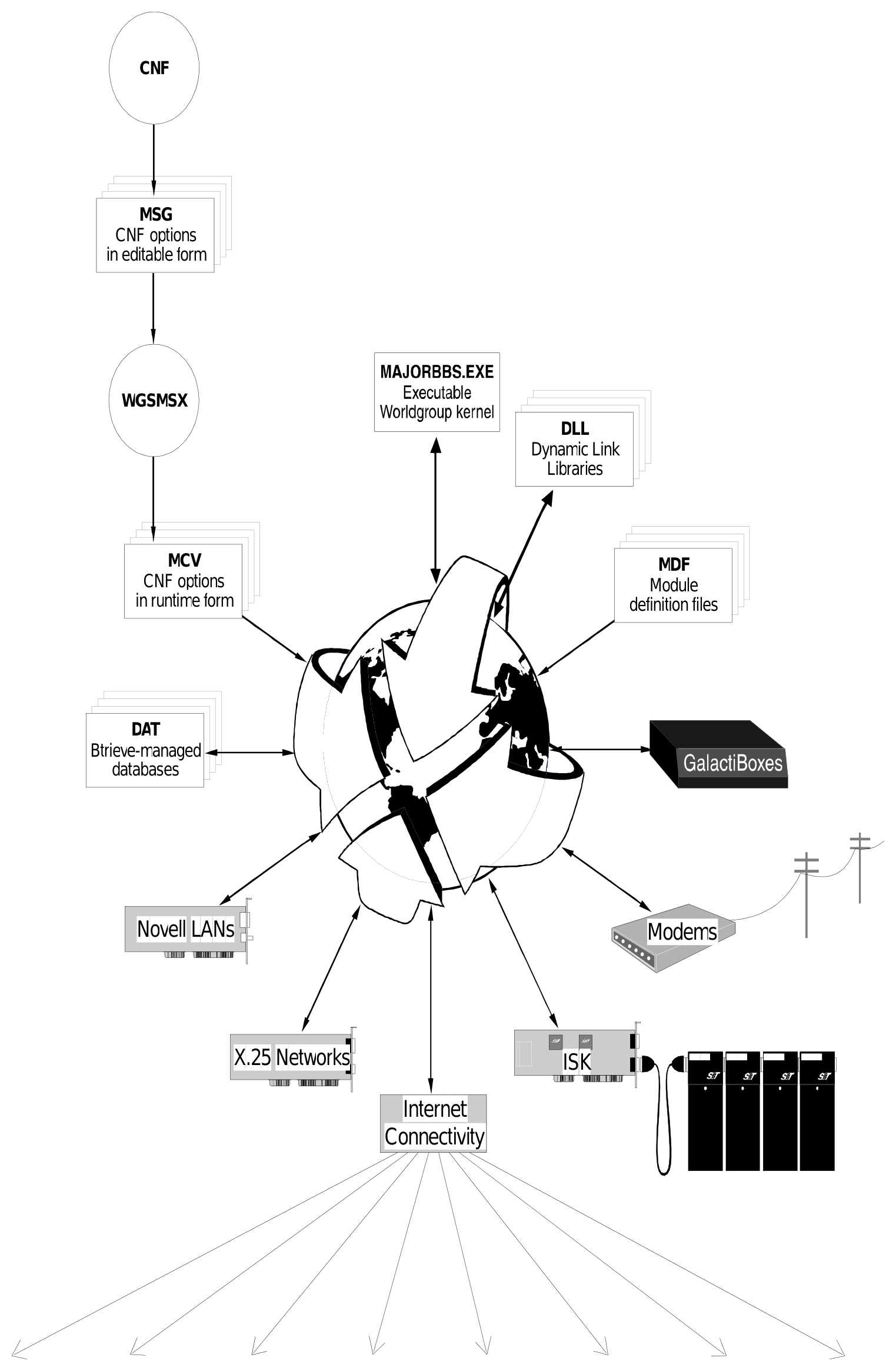
This is the way a Sysop without Developer’s Kits sees the Major BBS:
Applies to: v10
Not in v10. Historical figure. The run-time diagram shows
MAJORBBS.EXE, Novell LANs, X.25 networks, ISK cards and GalactiBoxes. In v10 the server executable iswgserver.exe(MBBS10.txtsection 3), and the DOS-era hardware connectivity is not part of the v10 API; there is no X.25 header in v10inc/. The modules,.MSG/.MCV,.MDFand Btrieve-managed databases boxes are still the model.
MAJORBBS.EXE is the kernel of the Major BBS server, putting users in touch with modules (.DLL and .MDF files) which offer activities such as Teleconferencing, Forums, File Libraries and E-mail. Other modules provide additional user languages and connectivity options such as X.25 and Internet access.
Module developers provide what they feel are a sufficient number of CNF options, giving Sysops some control over modules and users. The CNF program lets Sysops edit .MSG files, which the WGSMSX program then converts into indexed .MCV files for faster performance online. Developer’s Kits are necessary to create new CNF options because this involves changing source code.
Btrieve .DAT databases store user account information, messages, files online, etc. To create new databases, or restructure existing ones, you need Developer’s Kits plus Btrieve’s development software.
Behind the scenes are Developer’s Kits and programs used with them:
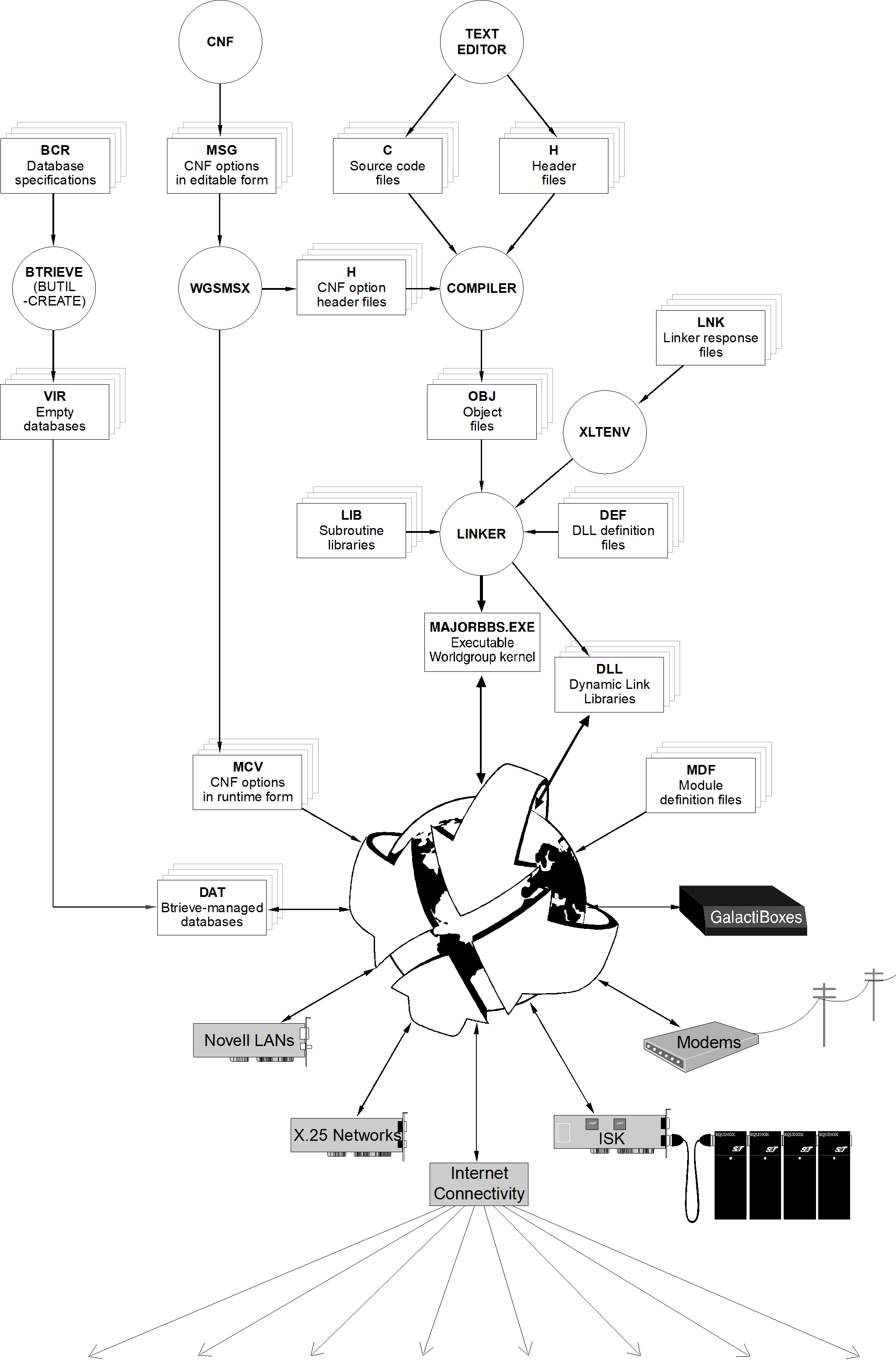
CNF option .MSG files are analyzed by WGSMSX, producing header (.H) files telling the source code how to locate CNF options indexed in the .MCV files.
The compiler merges .C source code files with .H header files, producing object files (.OBJ).
The linker, guided by .LNK files, links object files with subroutine libraries (.LIB) and definition files (.DEF) to form executable code, either the kernel, MAJORBBS.EXE, or add-on module .DLLs.
The MAKE program uses .MAK and .BAT files to automate the compiling and linking processes.
When installing an add-on, if active data files (.DAT) don’t exist yet, our INSTALL program copies virgin data files (.VIR) to same-named .DAT files.
You need Btrieve’s BUTIL program to make empty .VIR database files from the .BCR specification files.
Galacticomm’s development environment supports, and we encourage the use of, optionally compiled debugging code. This means that you can write code into your source files which can be compiled, or not compiled, depending on which batch file you use to make the project. Most of the development environment’s batch files come in pairs:
| Debugging version, filename ending in D | produces programs with debug code, giving you greater feedback during development and testing phases |
| Final version | produces programs without debug code, as intended for final release |
See page 327 for more details on debugging.
Almost all of the files that Major BBS needs to run will be located in the \WGSERV subdirectory. This includes the main executable file MAJORBBS.EXE, all dynamic link libraries *.DLL, all databases *.DAT, and all CNF options *.MCV, plus many more. See page 5 for conventions on file naming with Developer-IDs. See page 18 for the conventions on file extensions. When you run the Major BBS, don’t execute MAJORBBS.EXE directly, use WG.BAT instead.
For the Major BBS and all Add-on Options from Galacticomm:
\WGSERV\SRC holds source files
\WGSERV\PHOBJ holds object files compiled without debugging
\WGSERV\PHOBJD holds object files compiled with debugging
For all online source code, the compiler huge model will be used, along with Phar Lap 286|DOS-Extender enhancements. Subroutine libraries are in \WGSERV\DLIB.
See page 297 about developing offline utilities.
.ALT Alternate sorting sequence for databases
.ANS Text files with ANSI commands
.ASC Text files without ANSI commands
.BAT Batch files
.BCR Btrieve database creation specifications
.BIN Screen image files
.C C language source files
.CFG Compiler and linker configuration files
.DAT Btrieve databases
.DEF Protected mode definition files used during linking to specify exported symbols, etc.
.DID Installation specifications file on floppy disks
.DLL Dynamic Link Libraries (linker output)
.DMD Disabled .MDF file
.DOC Documentation
.EXE Executable files (linker output)
.FLG Special purpose flag files
.H C-language header files (some are generated by WGSMSX)
.HLP Help topic text files
.IBM Text file with ANSI commands and Extended ASCII characters
.IDX Internal data file
.INS Instructions
.LNK Linker response files specify all the object files that the linker needs to create an .EXE or .DLL file
.LOG Capture of local or emulated sessions
.MAK Make files
.MAP Linker report output
.MCV CNF options (run-time form)
.MDF the Major BBS module definition file
.MSG CNF options (editable form)
.OBJ Object files (compiler output)
.REF Internal reference file
.RLN Release notes
.RPT Reports
.SCN Screen image files
.TXT Text files for online viewing (sample Menu Tree file pages)
.VIR Empty or starting-point databases
.ZIP Files compressed and combined with PKZIP
See also page 5 on the use of Developer-IDs as file naming prefixes.
A few unique filenames:
MAJORBBS.EXE Main server executable program
MJRBBS.CFG Menu Tree generated list of .DLLs, languages, MSG’s, and other server requirements
Applies to: WG3.x
Header check: WG3.2 renamed several fixed file names.
LINGOFILEis"wgserv.cfg"(LINGO.H:50; WG2"MJRBBS.CFG"),MISSREQis"wgsreq.flg"(INTEGROU.H:139; WG2"BBSREQ.FLG") andDFTEDRis"wgsdraw %s"(LINGO.H:47; WG2"WGSDRAW %s"). The file names printed in this chapter are the WG1 names.
GP.OUT General Protection report file
To avoid conflicts between filenames and directory names wherever possible, filenames should have nonblank extensions and directory names should have blank extensions.
Here are a few of Galacticomm’s in-house standards on the formatting of C source files:
All C source files, after the comment header, should begin by including GCOMM.H: #include "gcomm.h"
GCOMM.H is a header file that does several things:
#includes several of the standard Borland C++ header files for defining constants, data types, macros, and function prototypes:
STDIO.H DOS.H SETJMP.H
STDLIB.H IO.H STRING.H
CTYPE.H MATH.H STDARG.H
DIR.H MEM.H TIME.H
#includes some special-purpose Galacticomm header files:
BTVSTF.H Btrieve database functions
DOSFACE.H DOS time and date, file finding
DSKUTL.H More DOS time and file functions
TFSCAN.H Text file scanning functions
LINGO.H Multilingual information
MSGRDR.H Reading .MSG files (for offline utilities)
#includes Phar Lap’s header file PHAPI.H
Defines prototypes for functions in PHGCOMM.LIB and LGCOMM.LIB
Defines constants for the second parameter of the fopen() function (see page 73)
Makes sure that the abs(), min(), and max() macros are defined
Defines constants for special keystrokes, for example F1, ALT_P, and CTRLHOME (these are possible return values of getchc(), see page 274)
Defines other constants, data types, and macros
Galacticomm C Source code uses function prototypes. This means: defining the return value and parameters
using void when a function doesn’t return anything
using void when a function has no parameters
putting a prototype in a corresponding .H file if other files must use the function
Assembly language functions are prototyped as much as possible:
                                void prf(char *fmat,...);
void prfmsg(int msg,...); |
Applies to: WG3.x
Header check: in WG3.2 the format parameter of
prf()isCHAR *fmt(GCOMM.H:806) and is still notconst; see theconst CHAR *hazard note in chapter 28.
There are shareware utilities like PROTOE that will help you generate prototypes for local-use functions in a .C file.
Routines that are needed only within the .C file where they reside should be coded as STATIC, as in: STATIC void
Applies to: WG3.x
Header check: the WG3.2 headers define neither
STATIC(WG2GCOMM.H:257:#define STATIC static) norBOOL(WG2AAEF.H:78,GCOMM.H). WritestaticandGBOOL(typedef short GBOOL,GCTYPDEF.H:105), and use theGCTYPDEF.Htype namesINT,UINT,CHAR,SHORT,USHORT,LONG,ULONG,UCHAR,VOID(GCTYPDEF.H:71-105) in place ofint,unsigned,char,short,long,void.GALPORT.EXEperforms these substitutions (chapter 28). Examples in chapters 2-12 that useSTATICorBOOLare WG1/WG2 style and will not compile against the 3.2 headers as printed.
localroutine(void)
{
doessomething();
} |
Routines that need to be called from code in other C source files should be coded normally: void
globalroutine(void)
{
doessomething();
} |
Your init__xxx() routines (page 42) should be coded as EXPORT, as in: void EXPORT
Applies to: v10
In v10
EXPORTis__declspec(dllexport)unless the project definesUSE_DEF_FILE, in which caseEXPORTis empty andinit__xxxmust be listed in the module's.DEFfile (GCTYPDEF.H:60-69). The two-argumentEXPORT_FUNCTION(inout,t,n)andEXPORT_TYPEof WG3.2 are gone (EXPORT_FUNCTION(t, n),GCTYPDEF.H:162). See chapter 29, section 29.5.
init__routine(void)
{
initsomething();
} |
Applies to: v10
MAJORBBS.EXE,MAKEBBS,TLINK,.LNKfiles andIMPLIB(this section and the next) are the DOS/Borland procedure. v10 buildswgserver.exeand the standard DLLs from the Visual Studio solution (src\server\wgserver), and import libraries are*_lib.libinlib\importlibs(chapter 29, section 29.3). Borland-compiled WG 3.x/NT modules can run through a forwarding DLL (MBBS10.txtsection 3), though some need conversion to native v10.
This section is mainly for those of you who are customizing your own Major BBS systems, not so much for those developing new add-ons.
When developing the Major BBS add-ons, we assume you won’t modify any of the code that makes up MAJORBBS.EXE, the Major BBS kernel. If you do, you severely limit your market to Sysops who have purchased the Client/Server Developer’s Kit for their own customization purposes.
When customizing the Major BBS to suit your individual needs, on the other hand, most of your work is likely to involve modifying the C source files that make up MAJORBBS.EXE or the standard .DLL files.
If you do, just run the MAKEBBS.BAT file to recompile and link by typing:
CD \WGSERV\SRC enter
MAKEBBS enter
This compiles and links what needs to be recompiled and relinked based on what files you have changed. The MAKE program, which comes with the Borland C++ compiler, only looks at the times and dates of the files, not at the actual changes you made. For example, if you change MAJORBBS.C, that file will be recompiled and relinked to form MAJORBBS.EXE. That makes sense. However, if you merely change a comment in GCOMM.H, then every single file in the standard package will be recompiled and relinked. MAKE sometimes does a little more work that it has to, but it’s the safest way to be sure that you’re running with the results of your latest source code changes.
You can always do the compiling and linking yourself, but be careful to use the correct batch file for each kind of step. For example, you should not run CTPH * to blanket-compile everything because different source files need to be compiled with different CTxxx.BAT files.
To process a <filename>.MSG file into .MCV and .H files:
        CD \WGSERV
WGSMSX <filename> -OSRC |
To compile a <filename>.C source file that contributes to MAJORBBS.EXE:
        CD \WGSERV\SRC
CTPH <filename> |
To compile a <filename>.C source file that contributes to a .DLL file:
        CD \WGSERV\SRC
CTDLL <filename> |
To link a new MAJORBBS.EXE:
        CD \WGSERV\SRC
LTPH |
To link a new <filename>.DLL file:
        CD \WGSERV\SRC
LTDLL <filename> |
You’ll use many of these same steps for compiling and linking your own .DLL files for your own Add-on Option. You can also create a debugging version of MAJORBBS.EXE by running MAKEBBSD.BAT:
CD \WGSERV\SRC enter
MAKEBBSD enter
This compiles and links a version of MAJORBBS.EXE which includes active debugging code. In these cases, CTPHD, CTDLLD, LTPHD, and LTDLLD are used. See page 327 for more on writing debugging code.
Applies to: v10
v10 modules are a Visual Studio project producing a
.DLL; exports come from__declspec(dllexport)or, withUSE_DEF_FILE, from a.DEFfile (for exampleGALGSBL_EXP.DEF,ELWBIO_EXP.DEF). Plaincharis unsigned (/J) in 118 of the 138 shipped projects, and struct packing is chosen by the project (StructMemberAlignment8Bytes in 86 projects): chapter 29, section 29.3.
Here are most of the administrative aspects of making a .DLL. The technical considerations will be discussed in later sections.
2. The rest of the code in your C source file(s) will probably flow indirectly from what you do in your init__xxx() routine. For example, if you register a module, the text line input entry point will need to be coded (page 42). If you register a text variable, that routine will probably be in your C source files too.
%PHARLAP%\bc4\lib\c0phdll + %PHARLAP%\bc4\lib\fpdmy + galp&q + galp&qa %MBBS%\galp&q %MBBS%\galp&q /m phapi mathh galimp gmeimp gsblimp /Twd /s /n %MBBS%\dlib\mathdef |
This links the supporting files which produce the Polls and Questionnaires Add-on Option .DLL. The first two lines of the .LNK file are Phar Lap object files necessary for creating a .DLL.
*If you had compiled debugging versions of GALP&Q.OBJ and GALP&QA.OBJ, they would be in \WGSERV\PHOBJD which would now be the current directory.
The next two .OBJ files are the compiled results of our source code, and are located in \WGSERV\PHOBJ, the current directory.* GALP&Q.OBJ is the terminal-mode and common area section, while GALP&QA.OBJ is the C/S-mode agent code.
The line beginning with phapi lists all of the .LIB files to be linked in with the .OBJ files. The second entry, mathh, includes the floating-point handler MATHH.LIB. The final line includes MATHDEF.DEF, the definition file paired with MATHH.LIB.
Notice the lines beginning with %PHARLAP% and %MBBS%. Files provided by us with the extension .LNK are not immediately ready to be given to TLINK. Our .LNK files include %environment% variables for the Major BBS, Borland, and Phar Lap directories, not the literal drive:\path names that TLINK is expecting. Our .LNK files must be translated first before being given to TLINK. That’s where our program XLTENV comes in: you use it to convert one of our .LNK files to a tempfile.LNK which is then run through TLINK. Finally, you should delete the tempfile.LNK. For example, if you run XLTENV from within a .MAK file, you could do this:
: xltenv $(MBBS)\src\bbsrpt.lnk $(MBBS)\src\tmpfil.lnk tlink @$(MBBS)\src\tmpfil.lnk del $(MBBS)\src\tmpfil.lnk > nul : |
The .DLL-linking batch file LTDLL.BAT uses XLTENV (so does its debugging twin LTDLLD.BAT). While you should know that our .LNK files need this extra step before TLINK gets them, you can let LTDLL handle the extra step for you.
*If you ever need to design your own .DEF file (perhaps because your .DLL has routines that other .DLLs need to call for some reason), make sure your .DEF Exports BCC286_EXE, required for math support.
Next, use Borland's IMPLIB program to create a .LIB import library from the .DEF file.
Finally, link the .LIB file in with the .DLL where the routines are referenced.
Read about TLINK in the Borland C++ Tools and Utilities Guide if you want to know more about .LNK files (linker response files) and .DEF files (module definition files, in Borland’s terminology). See page 30 for how we use MAJORBBS.DEF to make GALIMP.LIB.*
Your .DLL will be able to use routines in MAJORBBS.EXE by means of our import library \WGSERV\DLIB\GALIMP.LIB. Our import libraries use ordinal references to help with upward compatibility. Our intention is that your .DLL files will continue to work with future versions of the Major BBS.
If you use any routines from Borland’s compiler library that we don’t use in MAJORBBS.EXE and export in \WGSERV\DLIB\MAJORBBS.DEF, undefined symbol errors will occur. We use a lot of Borland library routines in the Major BBS, but naturally we don’t use every single one. It may be possible to include BCH286.LIB at the end of the list of libraries in your .LNK file, for example:
phapi mathh galimp gmeimp gsblimp bch286 /Twd /s /n |
But this doesn’t always work. Many of the Borland library routines have interdependencies with other library routines or internal data structures. If you use a memory allocation routine, for example, or any kind of file I/O routine, conflicts could arise with the memory or I/O routines used in MAJORBBS.EXE. A truly independent routine will not have this problem, but the only way to know this for sure is if you have the compiler library source code. The safest approach is to find an alternative to using the routine. Perhaps you could write your own version of the routine (giving it a different name to avoid conflicts). Or redesign the calling routine.
4. Ordinarily, terminal mode doesn’t use floating point math. If you’re writing a terminal-mode-only project, you may be able to leave math support out. Any C/S-mode involvement, however, almost guarantees you’ll need math support because VB date/time stamps are handled as floating point values.
Many of our add-on options don’t either, but a few do. If your .DLL does not use floating point math at all, you can make these changes to your .LNK file:
A. Remove the second line that links in FPDMY.OBJ:
\run286\bc4\lib\fpdmy +
B. Remove the reference to the MATHH.LIB file just after that of PHAPI.LIB on the next-to-the-last line:
phapi mathh galimp msgimp gsblimp /Twd /s /n
C. Change the last line to refer to \WGSERV\DLIB\NODEF.DEF instead of \WGSERV\DLIB\MATHDEF.DEF. Compare the contents of those two .DEF files to see what the critical differences are.
Even in terminal-mode-only situations, your software uses floating point math:
if you use %f in any control string for sprintf() or spr()
(printf() doesn’t support %f, nor our prf() and prfmsg(), page 96)if you declare any floating point variables or constants, orif you use any floating point math operators or functions. 5. Make a .MAK make file with instructions for compiling and linking your .DLL file (and .MSG file indexing with WGSMSX, as required). Basically, you’re telling MAKE about all the dependencies between files. See the .MAK files that we use (\WGSERV\SRC\.MAK) as a starting point, and see Borland’s documentation on the MAKE utility.
6. To try out your individual make file, just type the following, where <program name>.MAK is the name of your MAKE file:
MAKE -f<program name> |
Assuming you included debugging support in your .MAK file (as we do), use MAKE’s -DDEBUG switch to make a debugging version of your .DLL:
MAKE -DDEBUG -f<program name> |
7. You may want to add your .MAK file to \WGSERV\SRC\MAKEBBS.BAT for convenient, centralized recompiling:
cd \%MBBS%\SRC MAKE -fdddxyz.mak |
or | cd \%MBBS%\DDD MAKE -fdddxyz.mak |
where dddxyz.mak represents the name of your make file. See step 13 on page 10 about whether to use \WGSERV\SRC or \WGSERV\DDD for your source directory.
If you change MAKEBBS.BAT, do the same for MAKEBBSD.BAT, the file which creates a debugging version of the Major BBS, setting the -DDEBUG switch:
cd \%MBBS%\SRC MAKE -DDEBUG -fdddxyz.mak |
or | cd \%MBBS%\DDD MAKE -DDEBUG -fdddxyz.mak |
8. Name the .DLL file in the DLLs line of your .MDF file (more later on page 32).
Once you create your own <program name>.MAK file, you can use MAKE’s -f switch to remake <program name>.DLL:
MAKE -f<program name> |
If you wish to make a debugging version of your .DLL, do this:
MAKE -DDEBUG -f<program name> |
If you’ve edited MAKEBBS.BAT to make this new .MAK file, then run
MAKEBBS |
If you’ve edited MAKEBBSD.BAT to make a debugging version of this new .MAK file, then run
MAKEBBSD |
On the other hand, here’s how to do it a piece at a time:
To process a <filename>.MSG file into .MCV and .H files:
        CD \WGSERV
WGSMSX <filename> -OSRC |
To compile a <filename>.C source file that contributes to your .DLL file:
CD \WGSERV\SRC CTDLL <filename> |
or | CD \WGSERV\DDD CTDLL <filename> |
It’s not a good idea to do CTDLL * because different source files need to be compiled with different CTxxx.BAT files.
If you want to compile the same <filename>.C source file into a debugging version, use:
CD \WGSERV\SRC CTDLLD <filename> |
or | CD \WGSERV\DDD CTDLLD <filename> |
To relink your <filename>.DLL file:
CD \WGSERV\SRC LTDLL <filename> |
or | CD \WGSERV\DDD LTDLL <filename> |
If you want to relink the debugging version of <filename>.DLL file:
CD \WGSERV\SRC LTDLLD <filename> |
or | CD \WGSERV\DDD LTDLLD <filename> |
The development environment for the Major BBS depends on a number of software products, most importantly:
Borland C++ CompilerPhar Lap 286|DOS-Extender SDKThese products are available from many sources including Galacticomm.
These software packages are updated regularly (once or twice a year) and this causes a number of problems for Galacticomm, developers, and customizers of the Major BBS. We try to keep up with the latest versions, but what’s available in the stores and mail-order houses, and what’s compatible with what, isn’t always within our control.
If you purchase these products on your own, you need to make sure that the versions are compatible with each other and with Galacticomm source code. When possible, call us and verify version compatibility before you buy these products. We also stock them to give you a minimum-hassle alternative.
When updating software from Galacticomm or other parties, be sure that your new combination of software is a compatible set.
It is important to update your compiler and/or Phar Lap before updating the Major BBS.
1. Make a back-up copy of your entire hard disk.
2. Remove your compiler from your hard drive completely.
3. Remove Phar Lap from your hard drive completely.
4. Install the compiler, and/or Phar Lap, from scratch, following steps 2-4 on page 6.
5. Delete \WGSERV\MAJORBBS.EXE and all \WGSERV\.DLL files that you can recreate (probably all .DLL files except GALGSBL.DLL and BBSBTU.DLL).
6. Delete all object files in \WGSERV\PHOBJ\.OBJ and \WGSERV\LOBJ\.OBJ.
7. Run \WGSERV\SRC\MAKEBBS.BAT to make everything.
1. Make a backup copy of your entire hard disk.
2. If you’ve changed source code that the new update overrides, save your code somewhere handy.
3. Insert the first floppy diskette into your A: drive.
4. Type A:INSTALL enter (or use B: and B:INSTALL enter if needed).
6. Run \WGSERV\SRC\MAKEBBS.BAT to make everything.
MAJORBBS.DEF contains a long list of symbols for variables and functions defined in MAJORBBS.EXE. It gets used in two ways to bridge the gap between the code in the .DLLs and the code in MAJORBBS.EXE.
1 MAJORBBS.DEF is used when creating MAJORBBS.EXE to identify those symbols as exported so they are available to .DLLs.
2 It’s also used to make GALIMP.LIB, the import library that’s linked with all .DLL code, so that code can use those symbols.
To use MAJORBBS.DEF to create GALIMP.LIB, the following line must first be added to the beginning of MAJORBBS.DEF:
LIBRARY MAJORBBS |
Then we use Borland’s IMPLIB to create GALIMP.LIB
IMPLIB GALIMP.LIB MAJORBBS.DEF |
Then we remove the LIBRARY command from MAJORBBS.DEF, restoring it to the form that’s useful when linking MAJORBBS.EXE (via LTBBS.LNK).
Previous: Major BBS v10: 01 Overview | Contents | Next: Major BBS v10: 03 Operating Environment